Git Guide for Students
Welcome to the Faculty of Mathematics and Information Science (MiNI) Student Git system!
This guide will help you set up your Git environment and start collaborating on projects using our self-hosted git system.
1. Logging In (PW CAS / USOS)
Our Git system is integrated with the Warsaw University of Technology Central Authentication Service (PW CAS). You don't need to create a new account; simply use your USOS credentials.
- Navigate to https://sgit.mini.pw.edu.pl/.
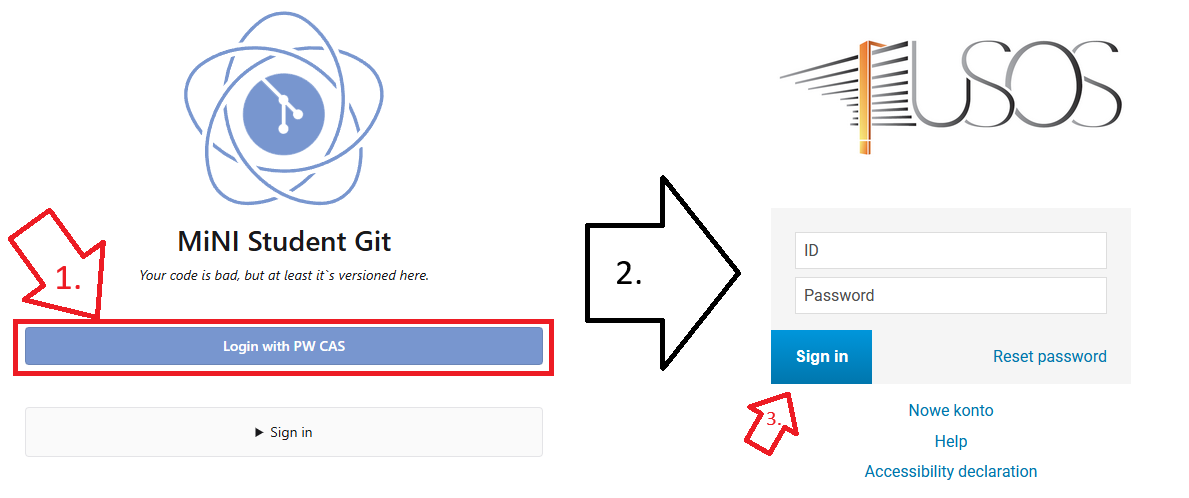
- Click on the Login with PW CAS button [1].
- You should be redirected to the USOS CAS login page [2].
- Enter your credentials there and sign in [3].
2. Local Git Configuration
Before you start committing code, you must tell Git who you are.
This information is attached to every commit you make.
Open your terminal (Command Prompt, PowerShell, or Bash) and run:
git config --global user.name "Jan Kowalski"
git config --global user.email "123456@pw.edu.pl"
Note: Use your actual name and university email address.
3. Secure Access: SSH Keys & Tokens
CRITICAL SECURITY RULE:
NEVER type your USOS/CAS password into the Git CLI or any 3rd party application.
If a tool asks for your password, use an SSH Key or a Personal Access Token.
Option A: SSH Keys (Recommended)
SSH keys allow you to connect to the server without a password.
- Generate a key: Run
ssh-keygen -t ed25519 -C "your_email@pw.edu.pl". Press Enter to save in the default location. - Copy the public key: Run
cat ~/.ssh/id_ed25519.pub(Linux/Mac) or open the file in Notepad (Windows). - Add to Forgejo:
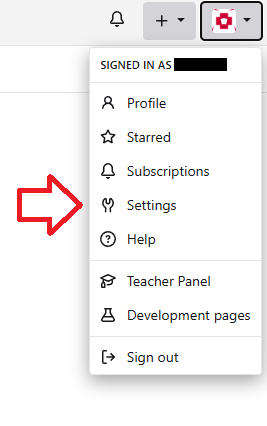
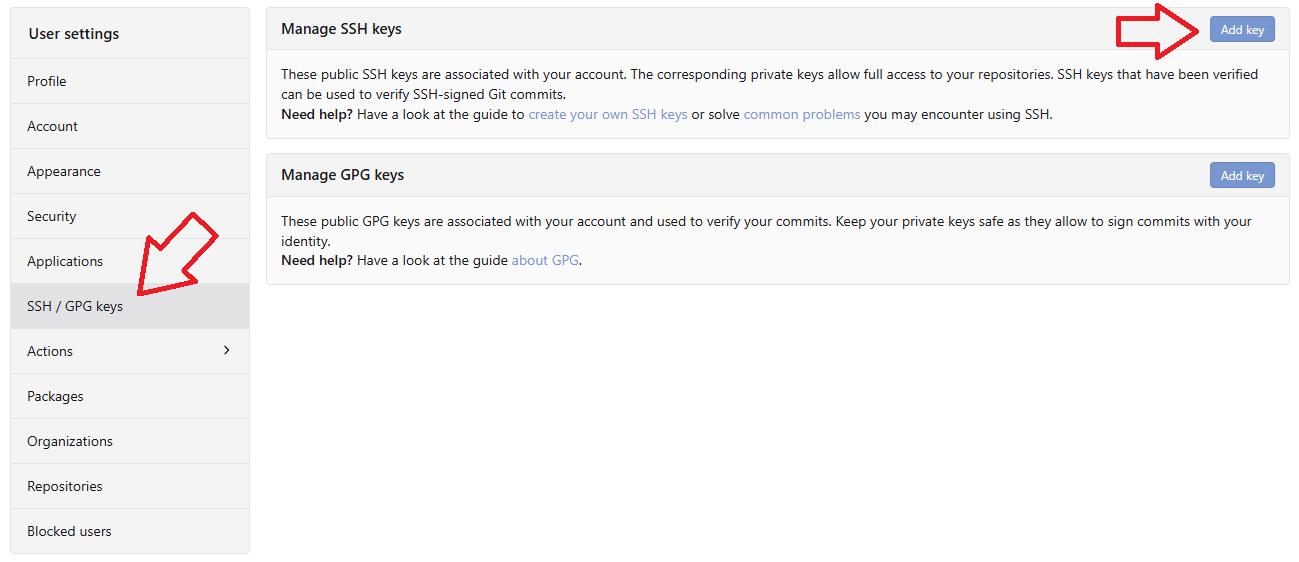
- Go to User Icon (top right) -> Settings -> SSH / GPG Keys.
- Click Add Key, give it a name (e.g., "My Laptop"), and paste the content of your public key.
SSH Access from Home (SSH Tunnel)
To access SSH from home (outside the faculty network), you need to use an SSH tunnel (ProxyJump). To configure it, edit (or create) the ~/.ssh/config file (on Windows: C:\Users\<YourUsername>\.ssh\config):
Host sgit-ssh.mini.pw.edu.pl
    HostName sgit-ssh.mini.pw.edu.pl
    User git
    IdentityFile ~/.ssh/<created_private_key>
    IdentitiesOnly yes
    ProxyJump <faculty_username>@ssh.mini.pw.edu.pl
Configuration explanation:
<faculty_username>is your login to the faculty computers (usually surname and first letter of first name, e.g.kowalskij).<created_private_key>is the file name of your private key (usuallyid_ed25519– without the.pubextension).
When connecting, SSH will prompt for your faculty password for ssh.mini.pw.edu.pl. You can also add another entry in ~/.ssh/config for ssh.mini.pw.edu.pl with a separate key to avoid typing your password every time:
Host ssh.mini.pw.edu.pl
    HostName ssh.mini.pw.edu.pl
    User <faculty_username>
    IdentityFile ~/.ssh/<faculty_key>
Option B: Personal Access Tokens
If you prefer HTTPS or your environment doesn't support SSH, use a token instead of a password.
- Go to User Icon (top right) -> Settings -> Applications.
- Under Access Tokens, enter a name (e.g., "Faculty PC"), Select permissions, for repository select Read and write, and click Generate Token.
- Save this token immediately! You will use this token as your password when Git prompts you in the terminal.
Your login/username is your USOS ID (e.g. 123456), which you can see on the profile page: https://sgit.mini.pw.edu.pl/user/settings.
4. Basic Git Commands
Clone a Repository
To download a project to your computer:
# Via SSH (directly from faculty network, or from home with SSH tunnel)
git clone ssh://git@sgit-ssh.mini.pw.edu.pl/Username/Repository.git
# OR
git clone git@sgit-ssh.mini.pw.edu.pl:Username/Repository.git
# OR via HTTPS (accessible from any network without extra configuration)
git clone https://sgit.mini.pw.edu.pl/Username/Repository.git
Synchronize Changes
Always pull the latest changes before starting your work:
git pull origin masterSave and Upload Your Work
-
Add changes to the staging area:
git add . # Adds all changed files # OR git add filename.py # Adds a specific file -
Commit your changes with a descriptive message:
git commit -m "Add implementation for Task 1" -
Push your changes to the server:
git push origin master
5. The Importance of .gitignore
A .gitignore file tells Git which files or directories to ignore. You should never commit:
- Compiled binaries (e.g.,
.exe,.o,.class). - Binary output folders (e.g.,
bin/,obj/). - IDE configuration folders (e.g.,
.vscode/,.idea/). - Dependency folders (e.g.,
node_modules/,venv/). - Sensitive data or local environment variables (
.env).
How to use it:
Create a file named .gitignore in the root of your repository and list the patterns you want to exclude:
# Ignore python cache
__pycache__/

# Ignore VS Code settings
.vscode/

# Ignore local env files
.env
You can find templates for .gitignore files for various languages and IDEs on GitHub: https://github.com/github/gitignore
6. Repository Restrictions
Some repositories may have access or content restrictions set up by the instructors.
If you encounter an error when pushing or pulling, read the error message carefully—the reason for the restriction will always be explained there!
Need More Info?
Git is a powerful tool with many more features (branching, merging, stashing). To become a pro, we highly recommend reading the official Pro Git Book:
For faculty-specific issues, contact the system administrators or your course instructor.